 blank
blank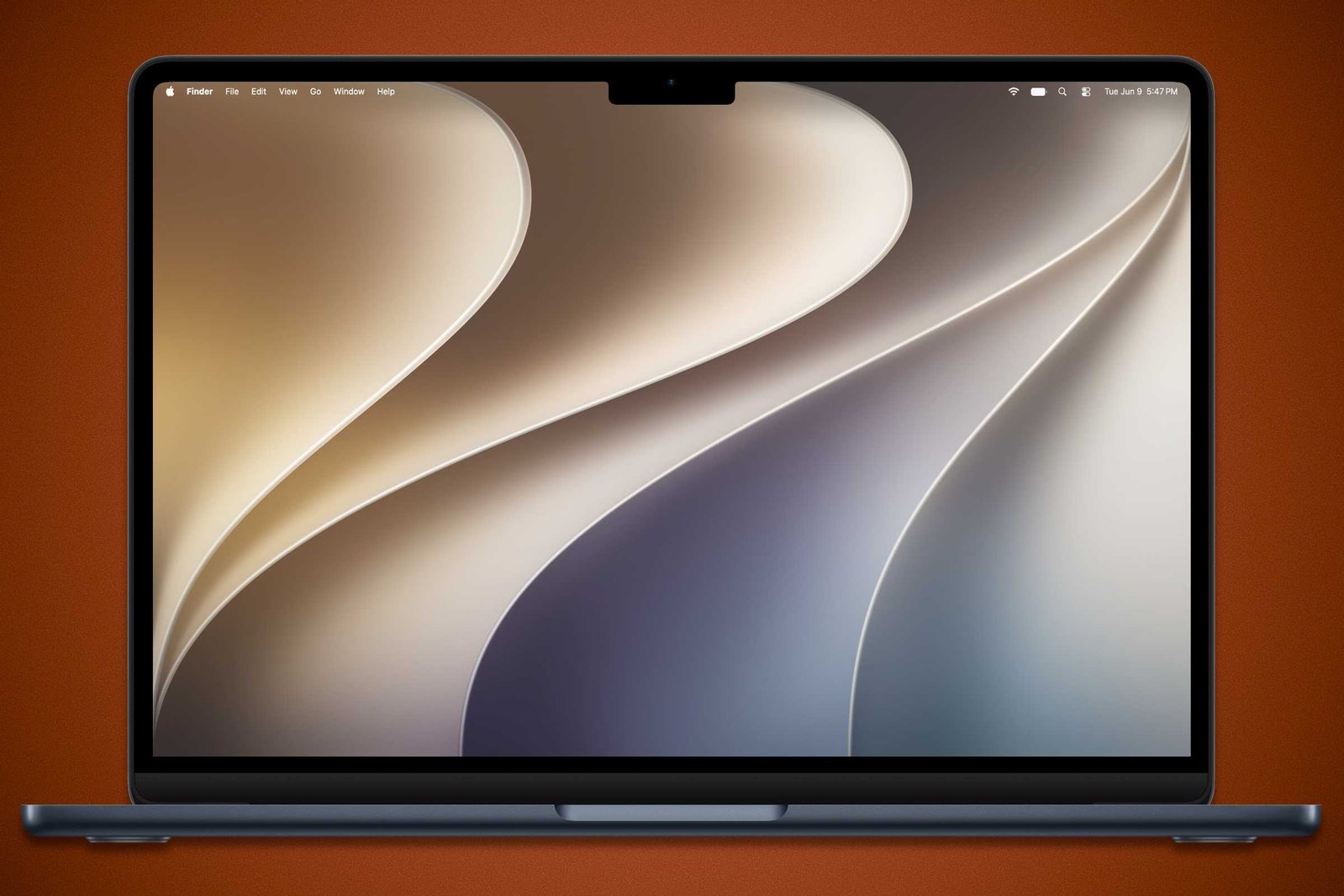
总结:
- 我们的报道称,macOS Golden Gate 优化了 macOS Tahoe 带来的重大 UI 变革,根据用户和开发者反馈引入了五项关键设计升级。
- Apple 正在为应用图标实现新的 Liquid Glass 效果,Maps 应用已在开发者测试版中展示了这一增强视觉处理。
- 图标变化包括添加轮廓和边框以提升清晰度,并在 App Store、Automator、FaceTime 和 Siri 等 Apple 应用中增强对比度并减少柔和感。
去年 macOS Tahoe 发布时,它对 UI 进行了重大图形改造。随着刚刚宣布的 Tahoe 继任者 macOS Golden Gate,Apple 正在对这些变化进行调整。为什么?很大程度上是因为用户和开发者的反馈,另一个原因是 Apple 可能意识到某些视觉元素需要进一步微调。
以下是 Apple 在 Golden Gate 开发者测试版中改变 macOS 外观的五个示例。由于这是第一个测试版,Apple 在今年秋季正式发布前可能还会进行进一步调整。
macOS 27 Golden Gate 壁纸
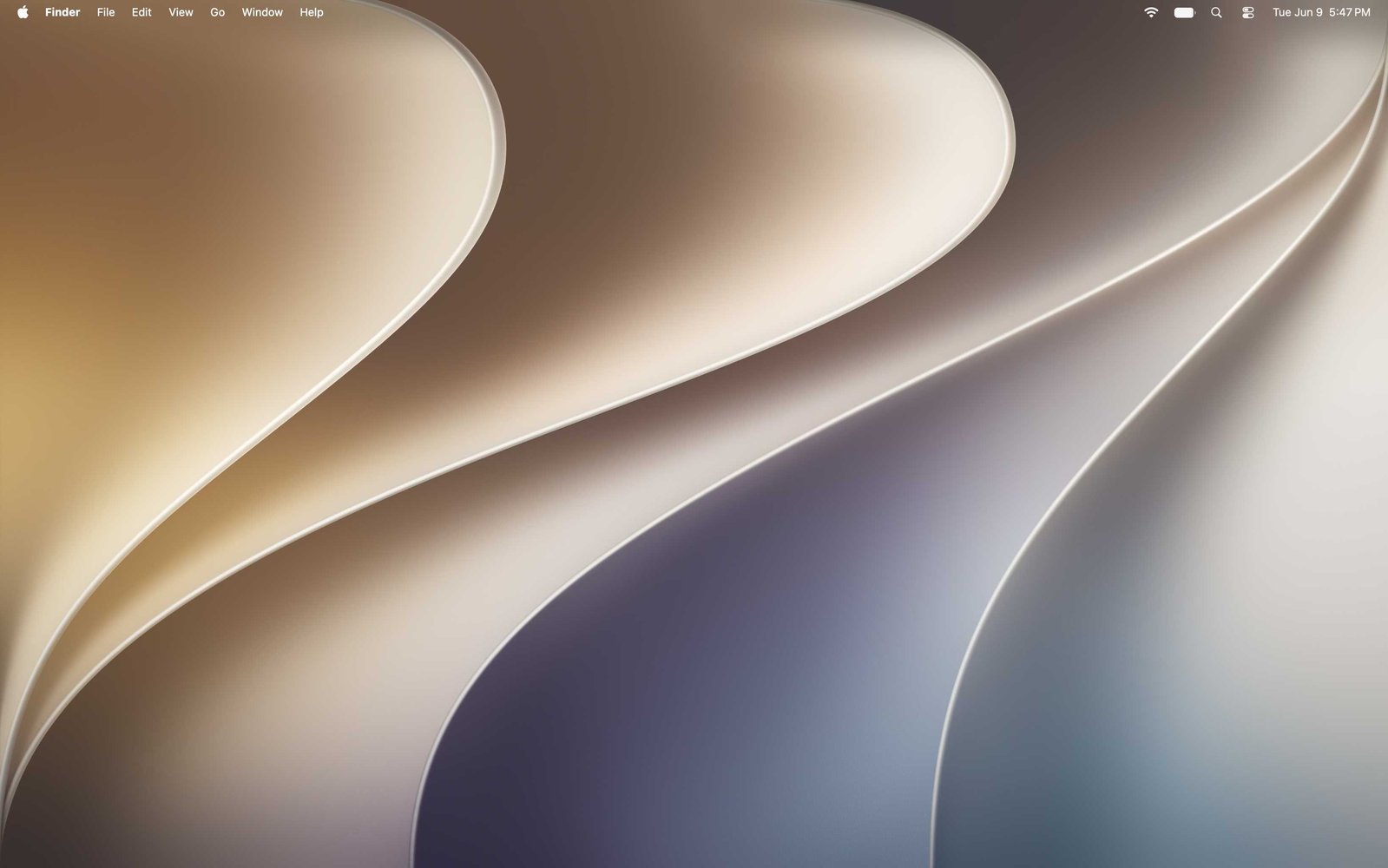
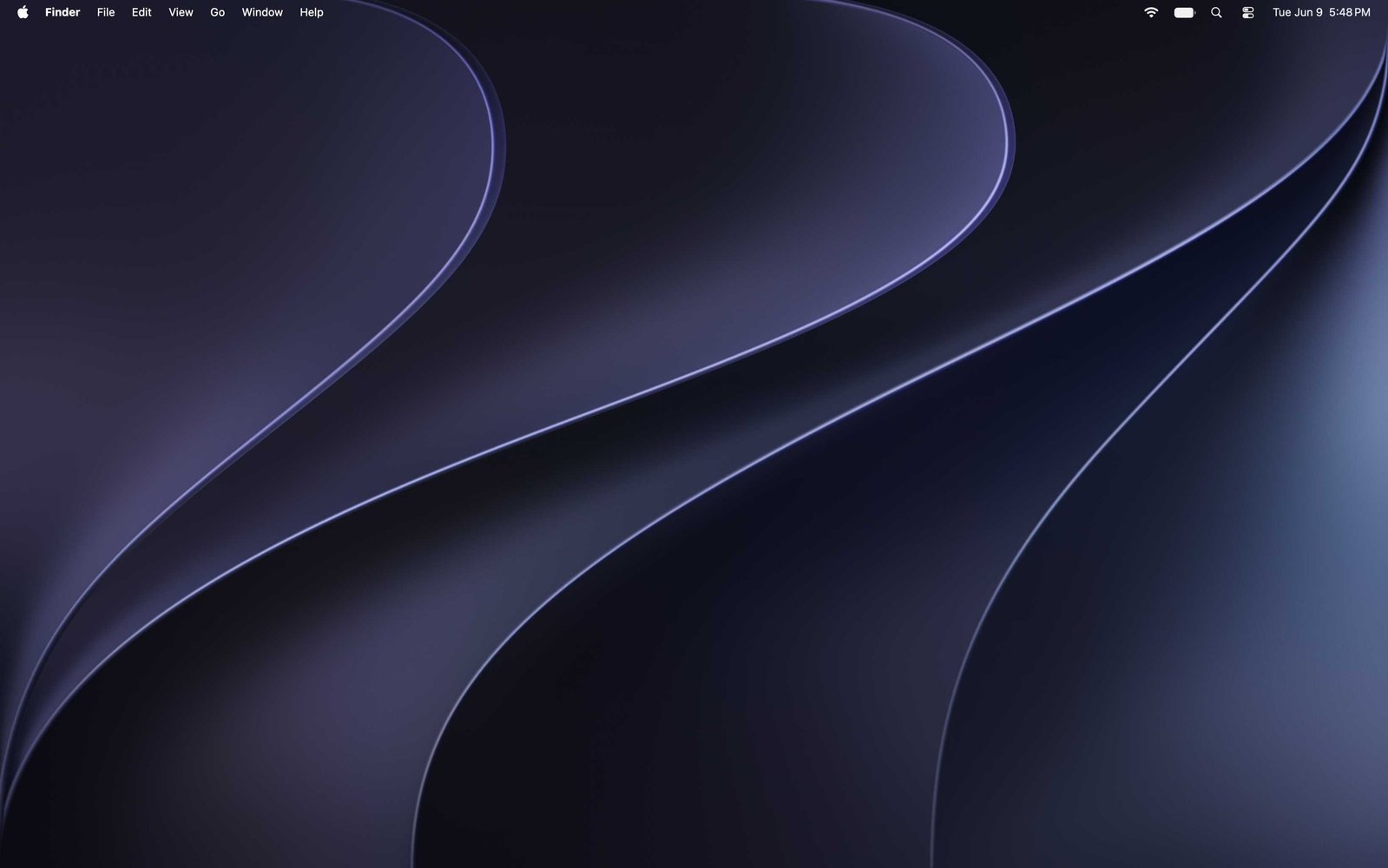 新的 macOS 27 Golden Gate 壁纸。
macOS 每次重大更新都会附带全新壁纸。你可以选择浅色版(左)或深色版(右),也可以让它们根据一天中的时间自动切换。
Finder 侧边栏变化
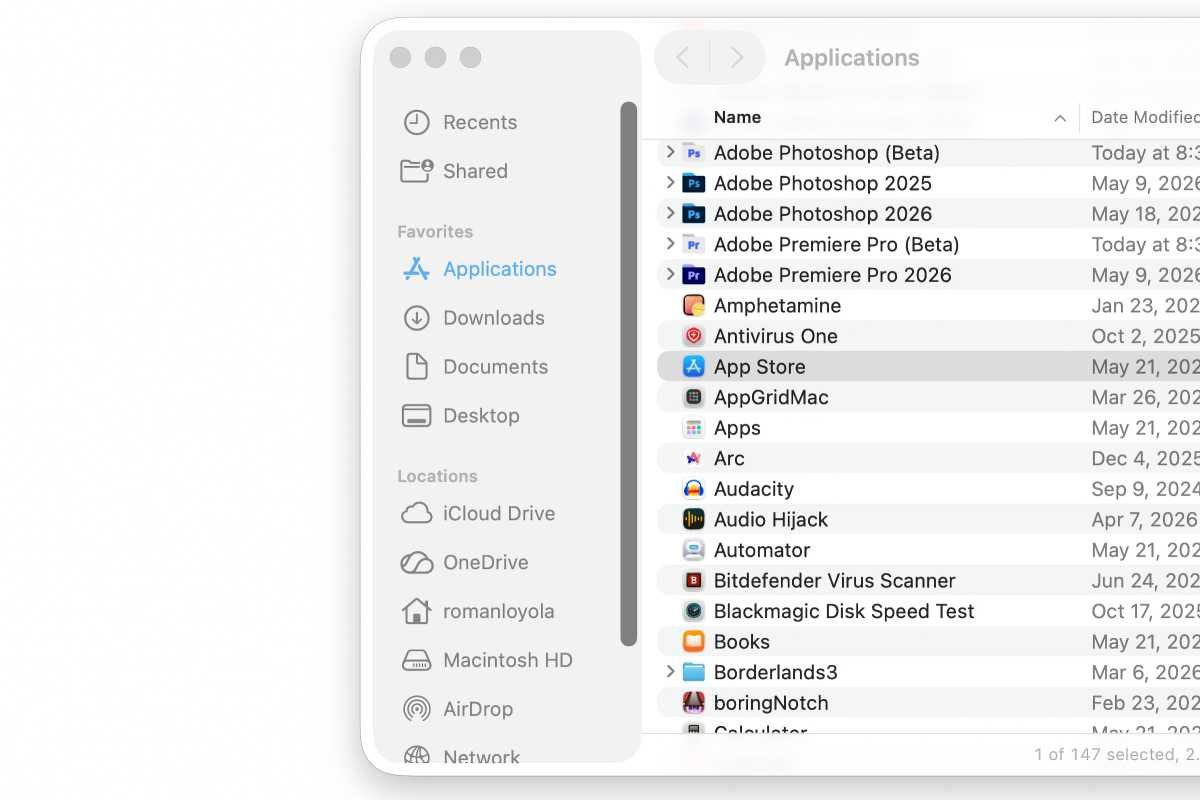
macOS Tahoe 侧边栏。
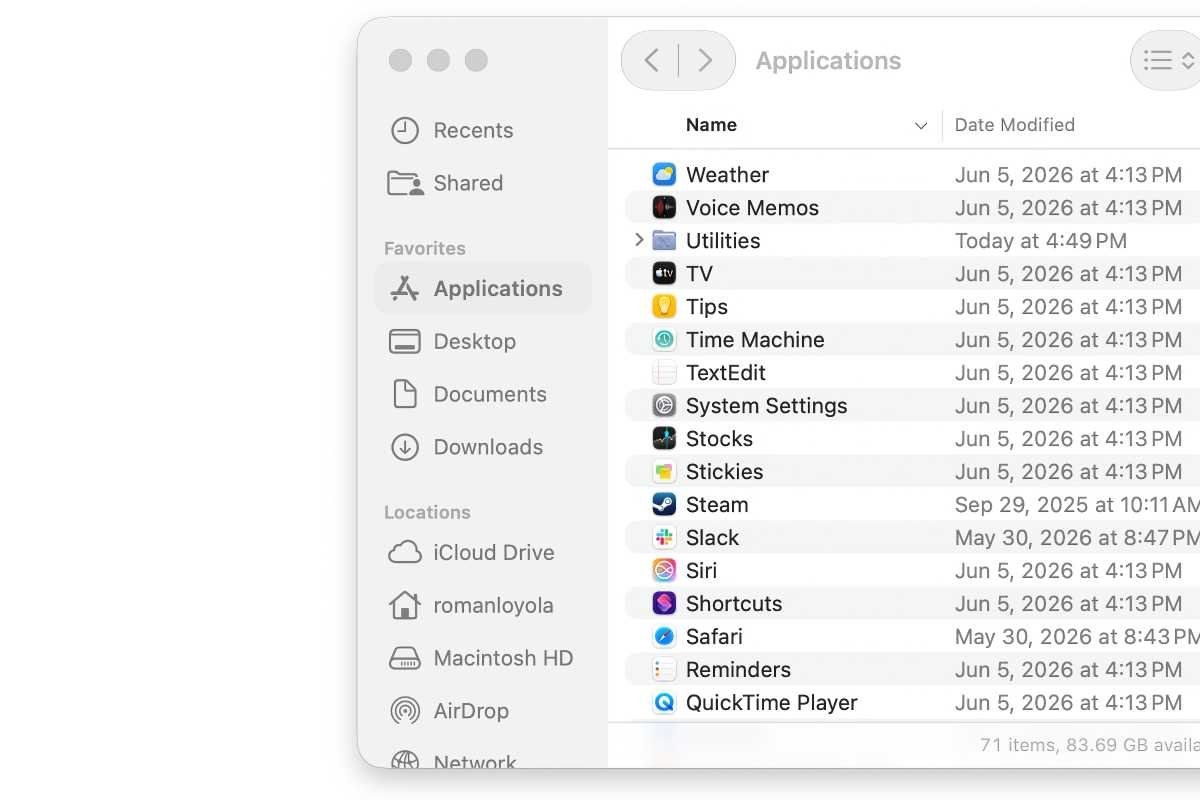
macOS Golden Gate 侧边栏。
在 macOS Tahoe 中,Apple 引入了“浮动”侧边栏(上图),但现在 macOS Golden Gate 中对整个列进行了着色(下图)。Apple 还更新了窗口圆角,使其在整个操作系统中保持一致的外观。
Liquid Glass 调整
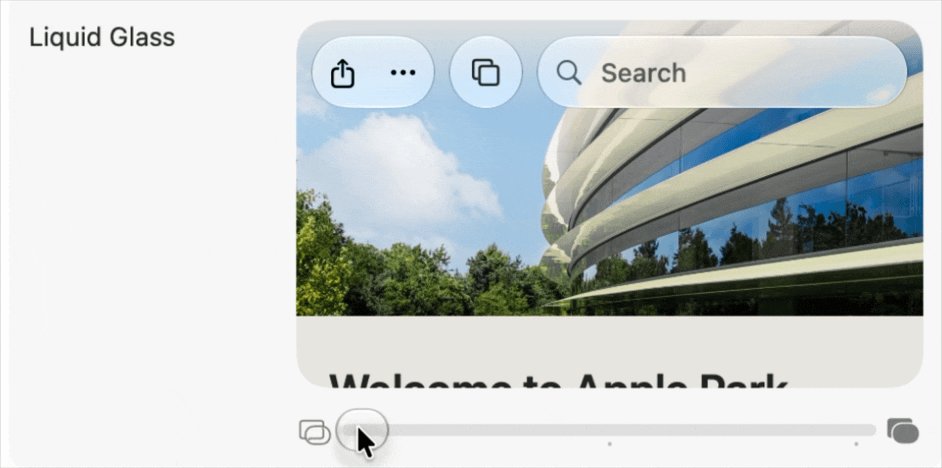
在“系统设置”中可以找到新的 Liquid Glass 设置。
在 macOS Golden Gate 中,你现在可以在“系统设置”>“外观”>“Liquid Glass”中调整 Liquid Glass 效果的透明度。在开发者测试版中,操作系统安装后会提示你调整此设置。
菜单中减少图标杂乱
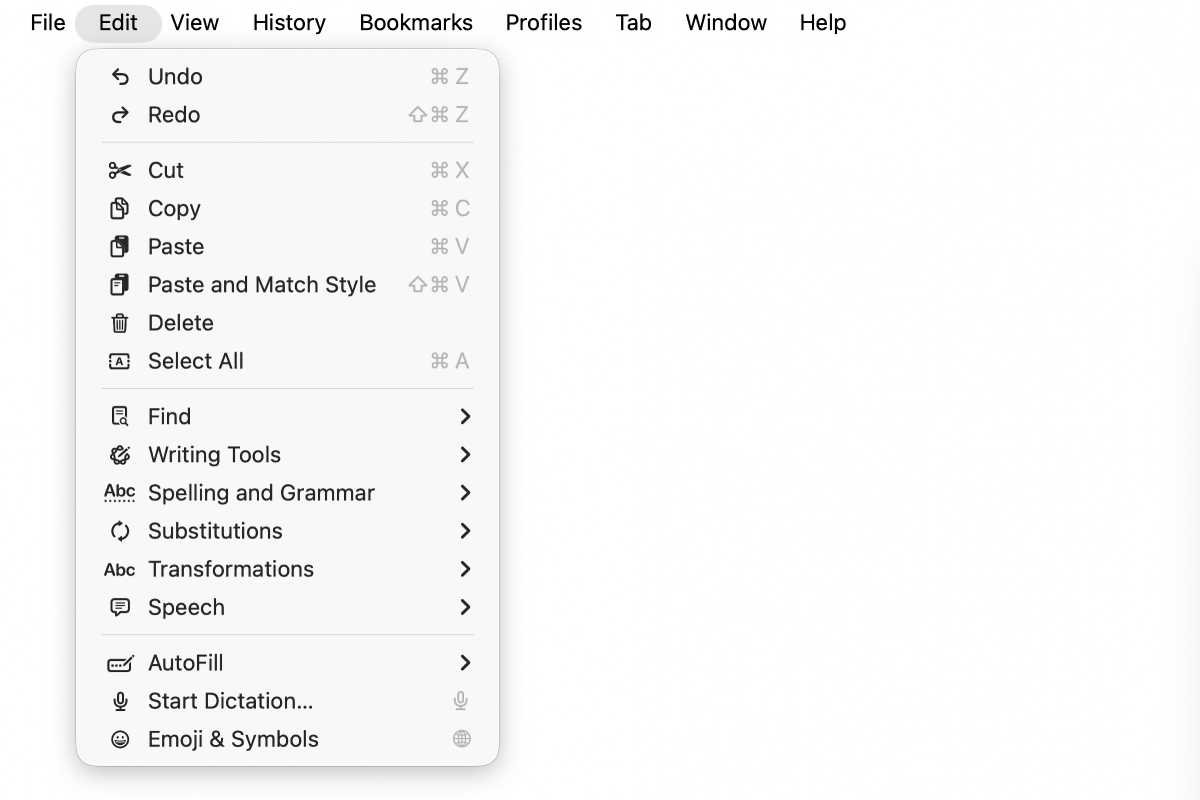
在 macOS Tahoe 中,Apple 认为菜单中图标越多越好。
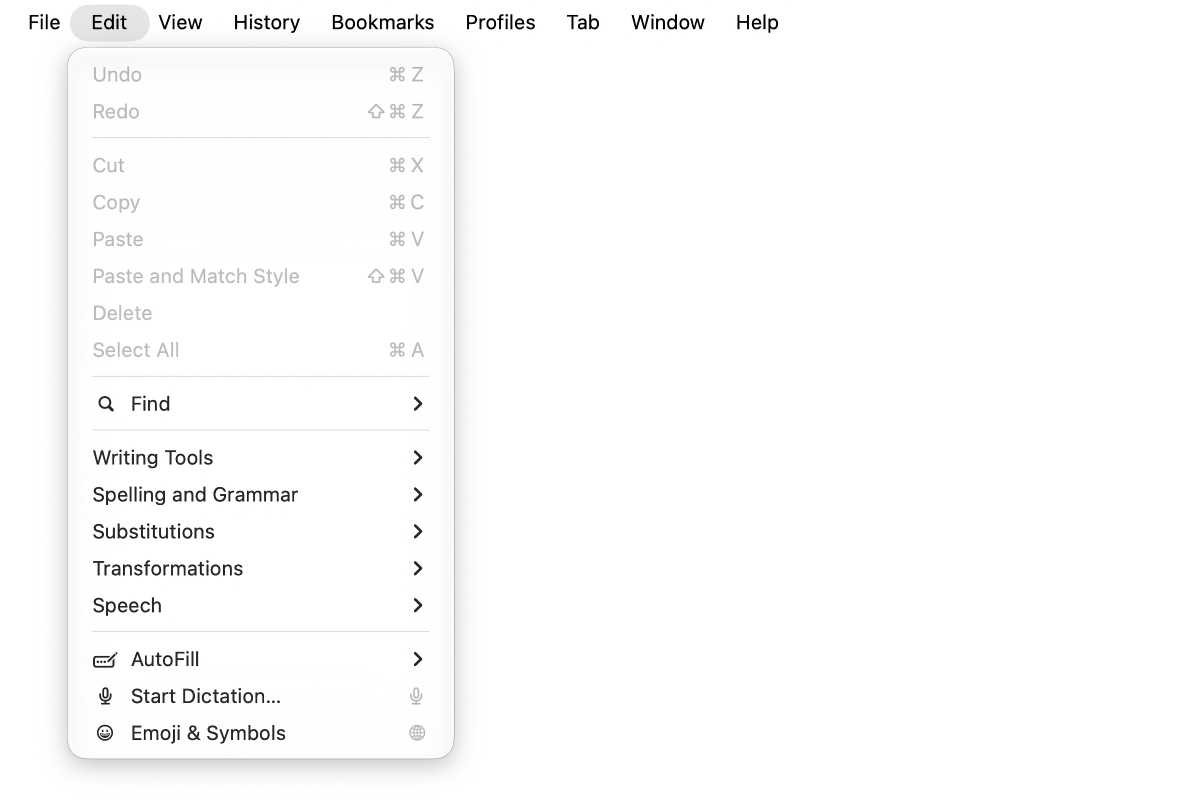
在 macOS Golden Gate 中,并非每个菜单项都有图标。
Apple 决定并非每个项目都需要在菜单中显示图标,这让界面看起来更简洁。
图标微调
Apple 正在引入为应用图标添加 Liquid Glass 效果的功能,因此你可能会在即将推出的第三方应用更新中看到这种效果。这在 Maps 应用图标中表现明显。但 Apple 还调整了整体外观,使其不再那么柔和,并具有更高的对比度。一些 Apple 应用图标增加了更多轮廓和边框。以下是一些示例。
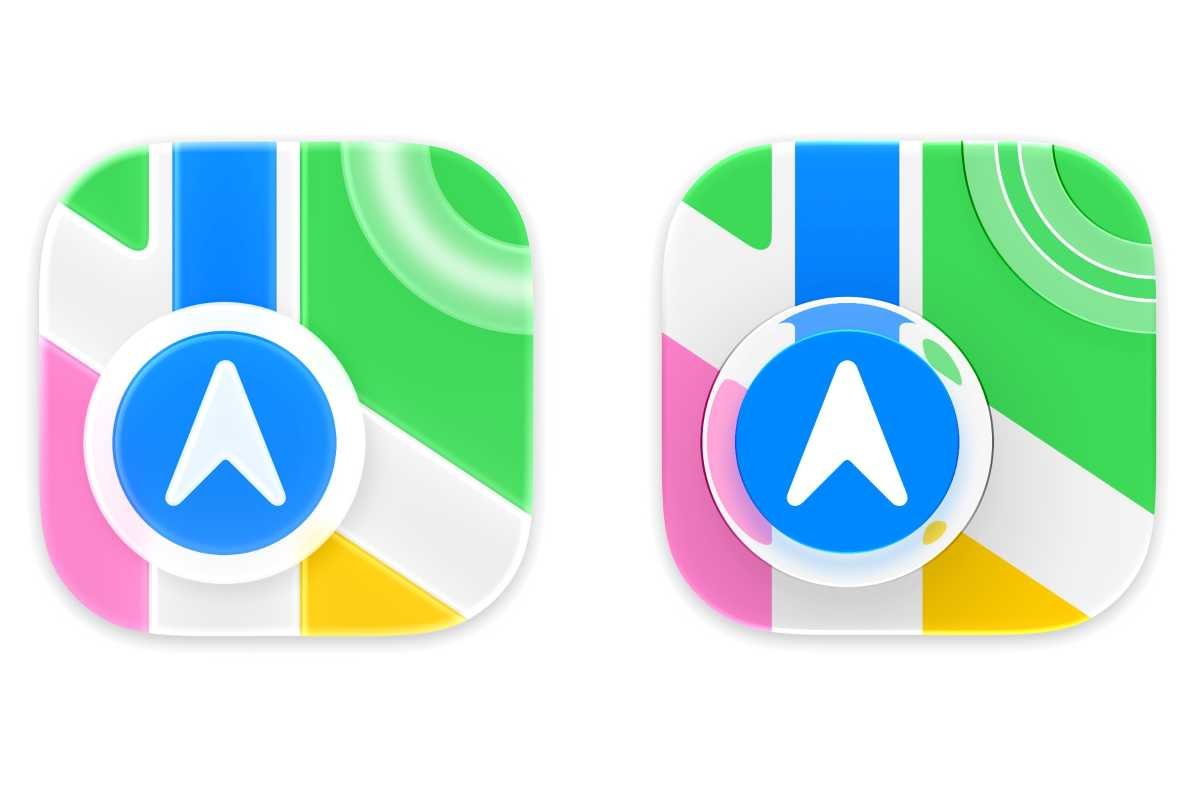
Maps:macOS Tahoe(左)和 macOS Golden Gate。
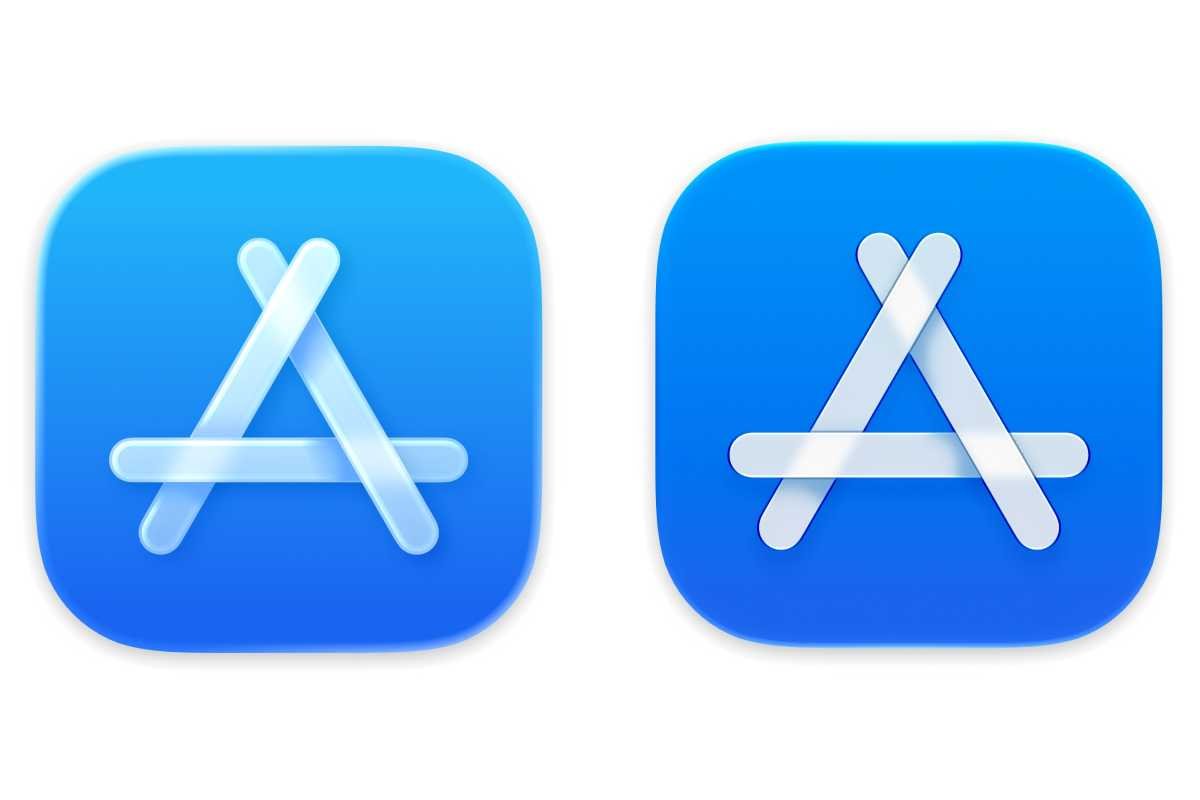
App Store:macOS Tahoe(左)和 macOS Golden Gate。
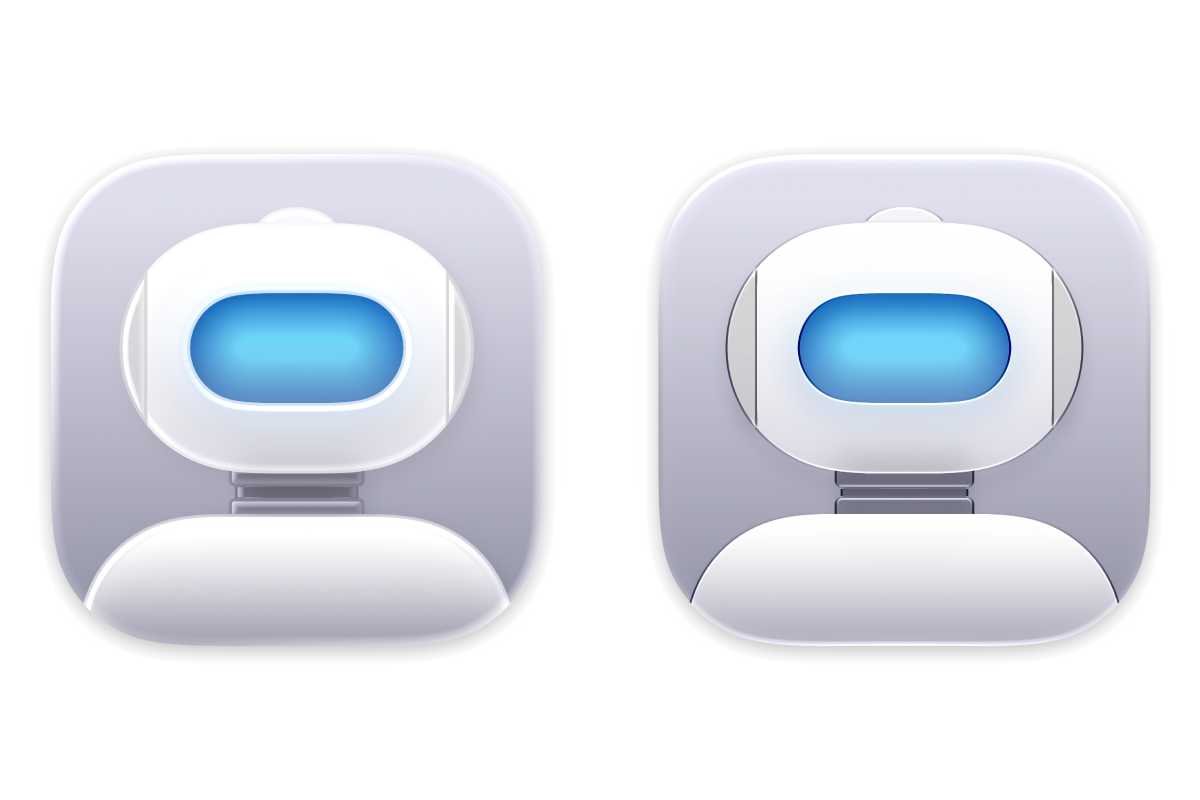
Automator:macOS Tahoe(左)和 macOS Golden Gate。
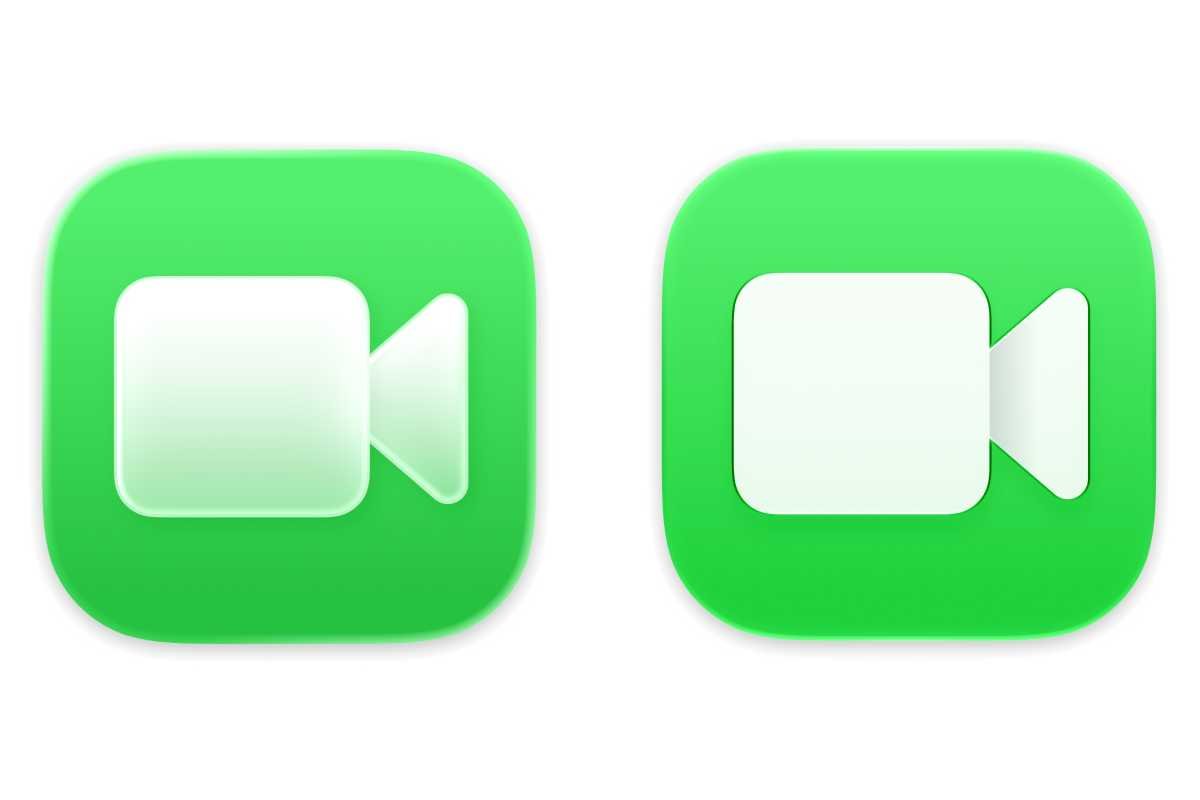
FaceTime:macOS Tahoe(左)和 macOS Golden Gate。
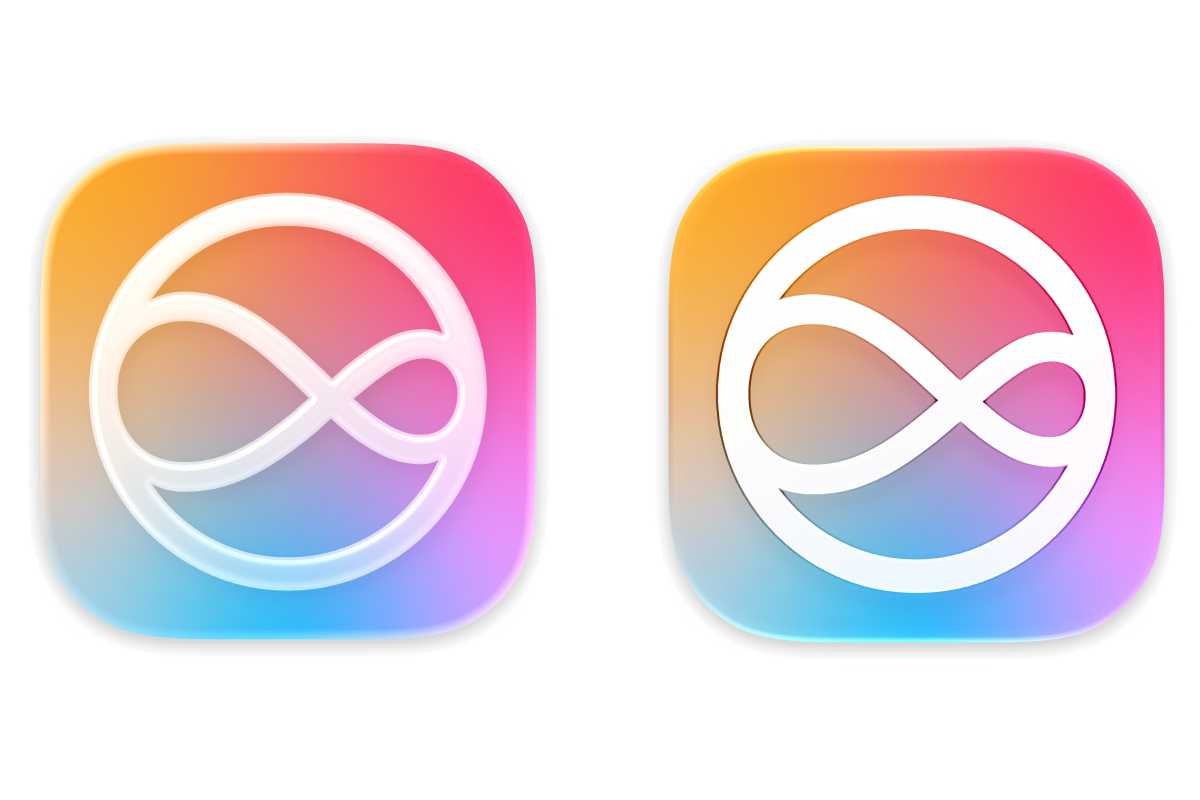
Siri:macOS Tahoe(左)和 macOS Golden Gate。
 2507222545
全部评论 0
暂无跟帖